Camera or microphone not working in video chat? The complete fix guide

On this page
You probably landed here from Get help on FTF.live, because your camera didn't turn on. The good news: it's almost always one of a few things, and each one has a quick fix. Start with the message FTF.live showed you.
What the message on FTF.live means
| What FTF.live shows | What it means | What to do |
|---|---|---|
| Camera blocked or Camera access is blocked | Your browser, or your device, was told not to share the camera or the microphone with FTF.live. | Allow both again. Pick your device below. |
| Camera unavailable or Your camera couldn't start | The browser may use the camera, but couldn't start it. It's busy in another app, unplugged or missing. | Close other video apps, check the camera, then press Try again. |
| Waiting for permission | Your browser is asking you right now. | Answer the browser's prompt and allow the camera and microphone. |
| Camera and microphone are off | You haven't turned them on yet. | Press Turn on camera. |
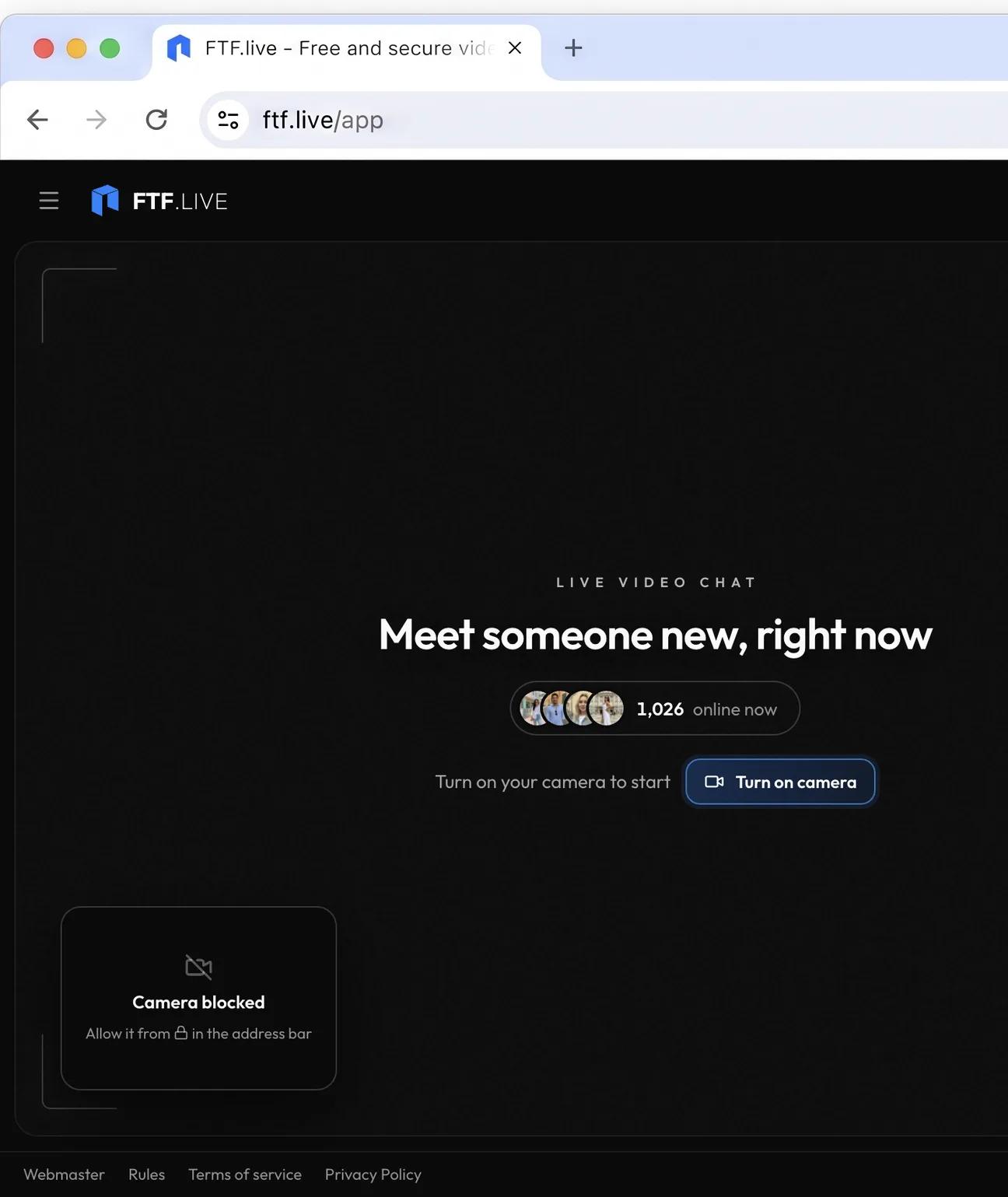
On a computer, Camera blocked shows on your own video, in the corner of the page:
If you press Turn on camera or START while the camera is blocked, FTF.live explains it in a window, with Try again and Get help:
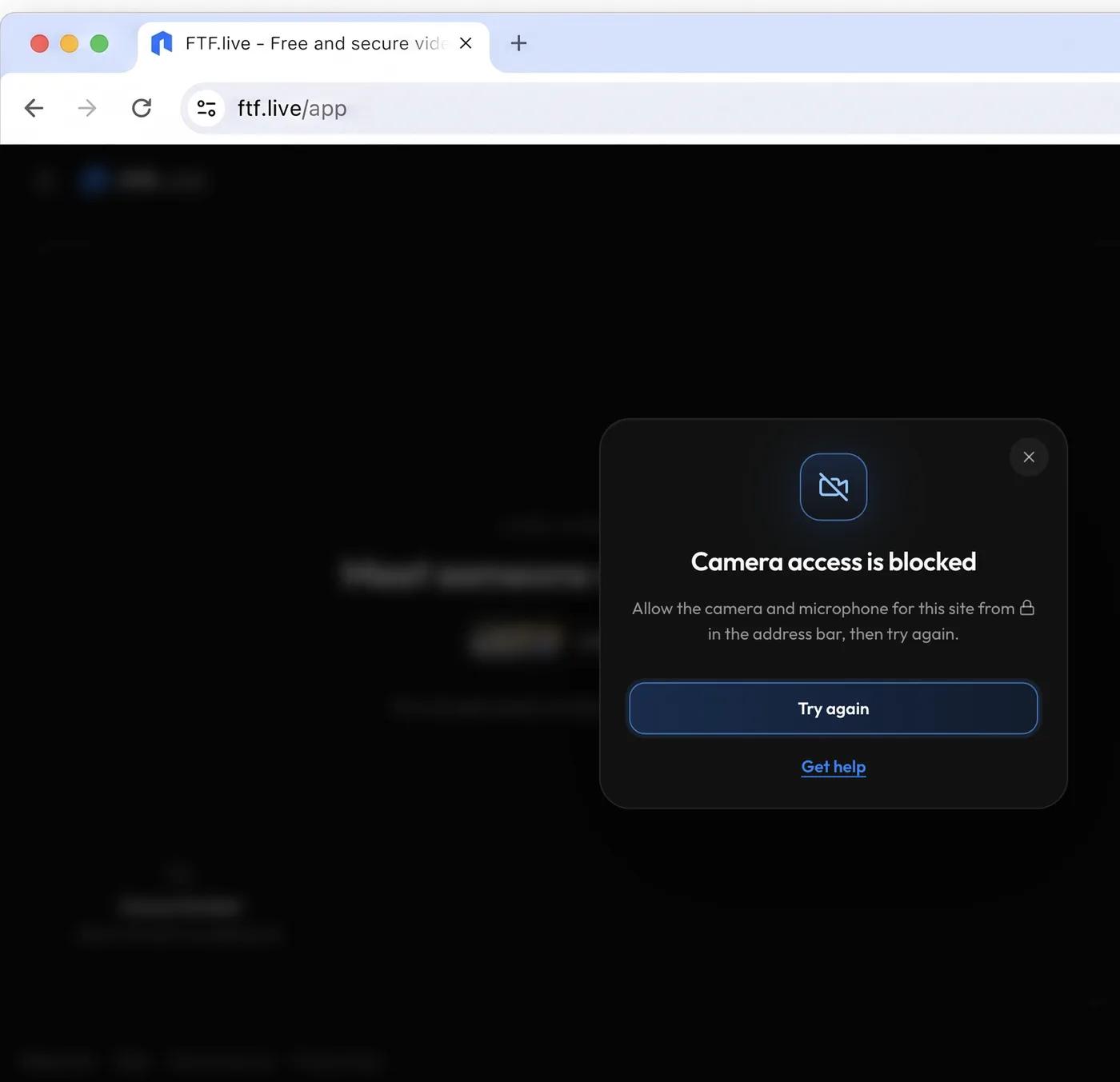
FTF.live's hint mentions a lock icon in the address bar. Current browsers look a little different: in Chrome, the icon at the left of the address shows two small sliders, and Safari keeps these settings in its page menu. The device guides below show exactly where to click.
The 60-second checklist
Before you dig into settings, run through these five checks. They fix most cases.
- Use a real browser. If you opened FTF.live from a link inside Instagram, TikTok or Facebook, open it in Safari or Chrome instead.
- Answer the prompt. When the browser asks, allow the camera and the microphone. In Chrome, the choice is Allow while visiting the site; there's no button that says only "Allow".
- Close other video apps. FaceTime, Zoom, Teams, OBS or another tab may be holding the camera.
- Check the device's own switch. Phones and computers can turn the camera off for every app. A laptop may also have a privacy cover or a camera key.
- Reload and try again. Reload FTF.live and press Turn on camera.
Pick your device
The exact buttons depend on your phone or computer and your browser. Each guide has screenshots.
On a computer you can also choose which camera and microphone FTF.live uses, from the gear on your own video. On a phone there's no device picker and no switch between the front and back camera: FTF.live uses the camera your browser opens. If you want a headset on your phone, connect it before you open FTF.live.
Using more than one browser? Each browser keeps its own permissions, so allowing the camera in Chrome doesn't allow it in Safari, and the other way round. Fix it in the browser you're using right now.
iPhone and iPad (Safari)
Safari asks "Allow “ftf.live” to use your camera and microphone?". Tap Allow. If you tapped Don’t Allow, change it from Safari's page menu under Website Settings for ftf.live, or in Settings → Apps → Safari. Full steps: Allow camera and microphone on iPhone and iPad (Safari).
Android (Chrome)
Chrome offers Allow while visiting the site, Allow this time and Never allow. If you chose Never allow, tap the icon at the left of the address and open Permissions. Android's own app permissions and the Camera access and Mic access tiles in Quick Settings can block the camera too. Full steps: Allow camera and microphone on Android (Chrome).
Windows (Chrome)
Allow the camera in Chrome's prompt, or from the site panel at the left of the address bar. Then check Settings → Privacy & security → Camera and Microphone in Windows 11. Full steps, including Windows 10: Allow camera and microphone on Windows (Chrome).
Mac (Chrome)
Allow the camera in Chrome's prompt or site panel. If Chrome still can't see the camera, turn on Google Chrome under System Settings → Privacy & Security → Camera and Microphone, then quit and reopen Chrome. Full steps: Allow camera and microphone on Mac (Chrome).
Mac (Safari)
Click Allow in Safari's prompt. If you clicked Don’t Allow, open the page menu → Website Settings and set Camera: and Microphone: to Allow. Full steps: Allow camera and microphone on Mac (Safari).
Allowed, but still no picture
If you see Camera unavailable or Your camera couldn't start, permission isn't the problem. Something else is holding the camera, or the camera isn't there:
- close every other app and tab that might use the camera;
- open the privacy cover, or press the laptop's camera key;
- plug an external camera back in, or try another USB port;
- restart the browser, or the whole device.
Then press Try again. If you plugged in a new camera, reload the page and turn the camera on again: FTF.live reads the list of cameras and microphones when the camera starts. More fixes: I allowed camera access, but my camera still doesn't work.
Sound problems
FTF.live has no mute button, so if the other person can't hear you, the cause is usually the microphone permission, the wrong microphone or the device's sound settings. If you can't hear them, check your volume, your headphones and whether the browser tab is muted. And if just one person is silent, the problem may be on their side: press Next. Headphones help too: they stop the echo you get when your speaker plays back into your microphone, so the other person hears you more clearly. Step by step: The other person can't hear me (or I can't hear them).
The wrong camera on a computer
If your computer has a built-in camera and a webcam, FTF.live may pick the one you didn't want. Turn the camera on, move the mouse over your own video and click the gear. In Media Devices, choose the camera under Video Input and the microphone under Audio Input, then press Set. Set stays greyed out until the preview has started, and FTF.live remembers your choice in this browser. Details: Choose which camera and microphone FTF.live uses.
In-app browsers
Links you tap inside Instagram, TikTok, Facebook and similar apps often open in the app's own built-in browser. These built-in browsers may not be able to use your camera at all, and then no setting inside FTF.live can help. Use the app's menu to open the page in your regular browser, or copy the link and paste it into Safari or Chrome. See Which browsers can I use?
If the browser never asks
Sometimes you press Turn on camera and no prompt appears at all. There are three usual reasons:
- You answered before. In Chrome, a Never allow is remembered for the site. In Safari, check the website settings for ftf.live. The device guides above show where.
- The camera is denied for every site. Chrome can be set to Don't allow sites to use your camera, and Safari's camera setting for all websites can be set to Deny. Switch it back to asking.
- You're in an in-app browser. Some built-in browsers can't show a camera prompt at all. Open the page in Safari or Chrome.
How FTF.live asks for your camera
A few details about how FTF.live handles the camera:
- When it asks. If you're signed in, FTF.live asks for the camera as soon as the page opens. As a guest, it asks only when you press Turn on camera or START.
- Camera and microphone go together. FTF.live asks for both at once. In Chrome, if either one is blocked, FTF.live shows a blocked message, even when the other one is allowed.
- After you change a setting. In Chrome, once you allow the camera from the address bar, FTF.live usually notices and turns your camera on by itself. In other browsers, reload the page and press Turn on camera again.
- What Try again does. Try again asks your browser for the camera once more. If the cause is fixed, the camera turns on and the window closes by itself. If nothing changes, the cause is still there, so work through the checks above.
On a phone or on a computer
The same problem reads a little differently depending on your screen:
- On a phone, a blocked camera shows Camera access is blocked and "Allow the camera and microphone in your browser's settings.", with a Get help link right below. A camera that can't start shows Camera unavailable, also with Get help.
- On a computer, a blocked camera shows Camera blocked on your own video. A camera that can't start shows Camera unavailable and "Check that it's connected and not used by another app."
- While the browser is asking, FTF.live shows Waiting for permission and tells you to choose Allow. The button's exact name depends on your browser: Safari says Allow, while Chrome says Allow while visiting the site.
Still stuck?
Write to us at pixovercorp@gmail.com. Tell us your device, your browser and the exact message FTF.live shows, and we'll help you from there. A screenshot of the message helps too, and so does a note on what you've already tried from this guide. More about contacting us: How to contact us.
Once your camera is on, press START and meet someone new.
Open the video chat