Allow camera and microphone on iPhone and iPad (Safari)
When FTF.live asks for your camera, Safari shows a prompt: tap Allow. If you tapped Don’t Allow before, turn the camera and microphone back on for ftf.live from Safari's page menu or from Settings, then reload the page.
The steps and screenshots below are from Safari on iOS 26.3.
When the prompt appears
Tap Turn on camera or START on FTF.live. If you're signed in, the prompt can also appear as soon as the page opens. Safari asks "Allow “ftf.live” to use your camera and microphone?". Tap Allow.
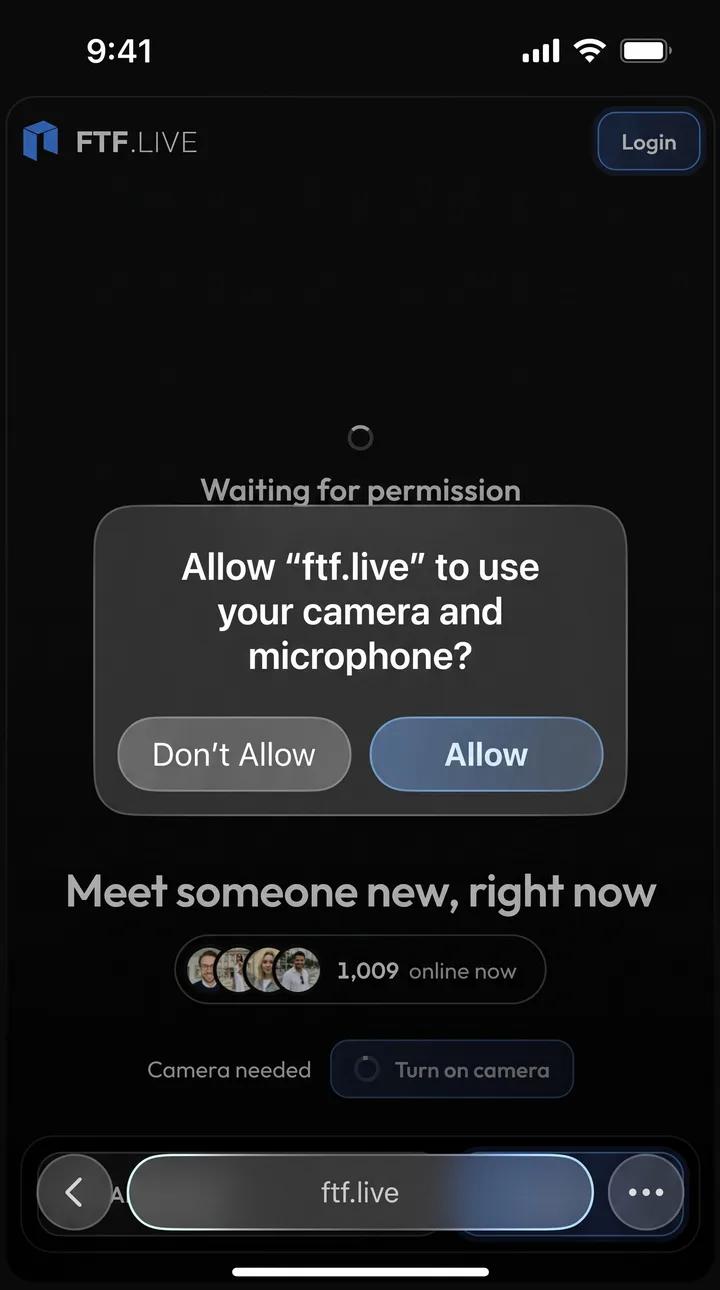
FTF.live needs both the camera and the microphone. If either one isn't allowed, FTF.live can't turn your camera on.
If you tapped Don’t Allow
Turn the camera and microphone back on for ftf.live from Safari's page menu.
1. Open the page menu
On the FTF.live page, tap the Page Menu button at the left end of the address field.
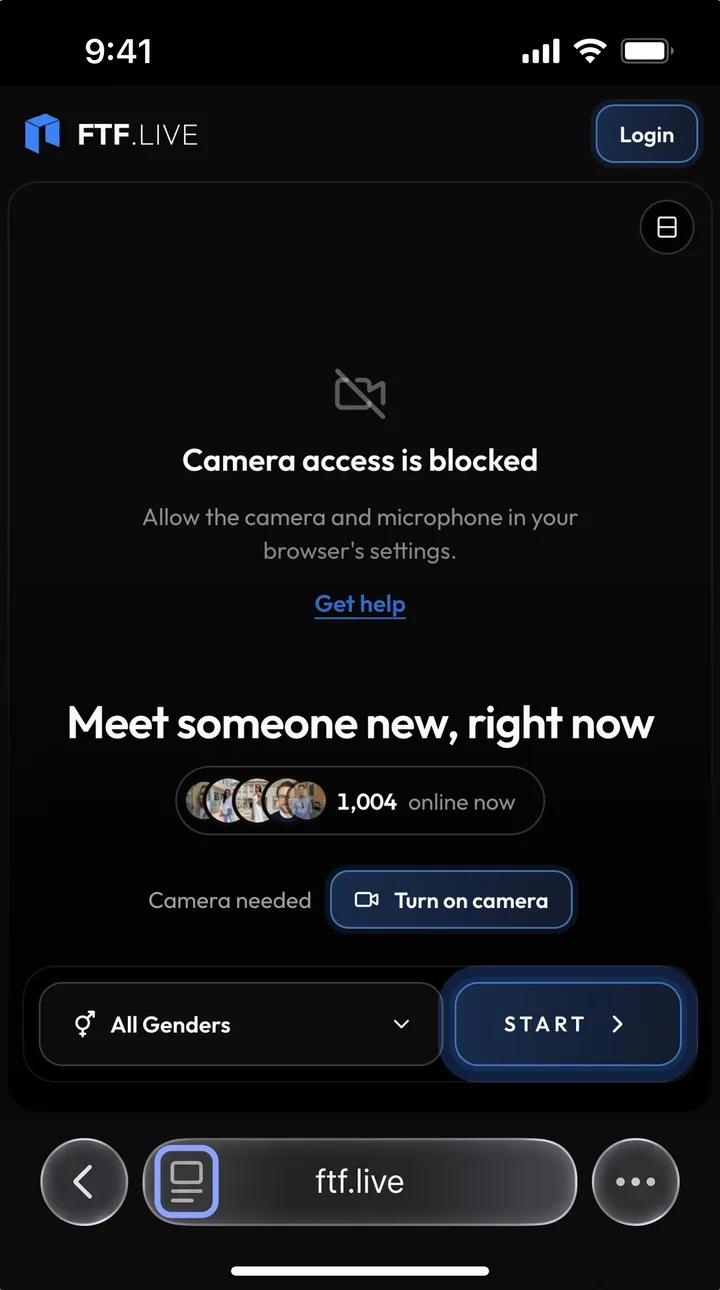
2. Tap More
In the page menu, tap the More button (•••).
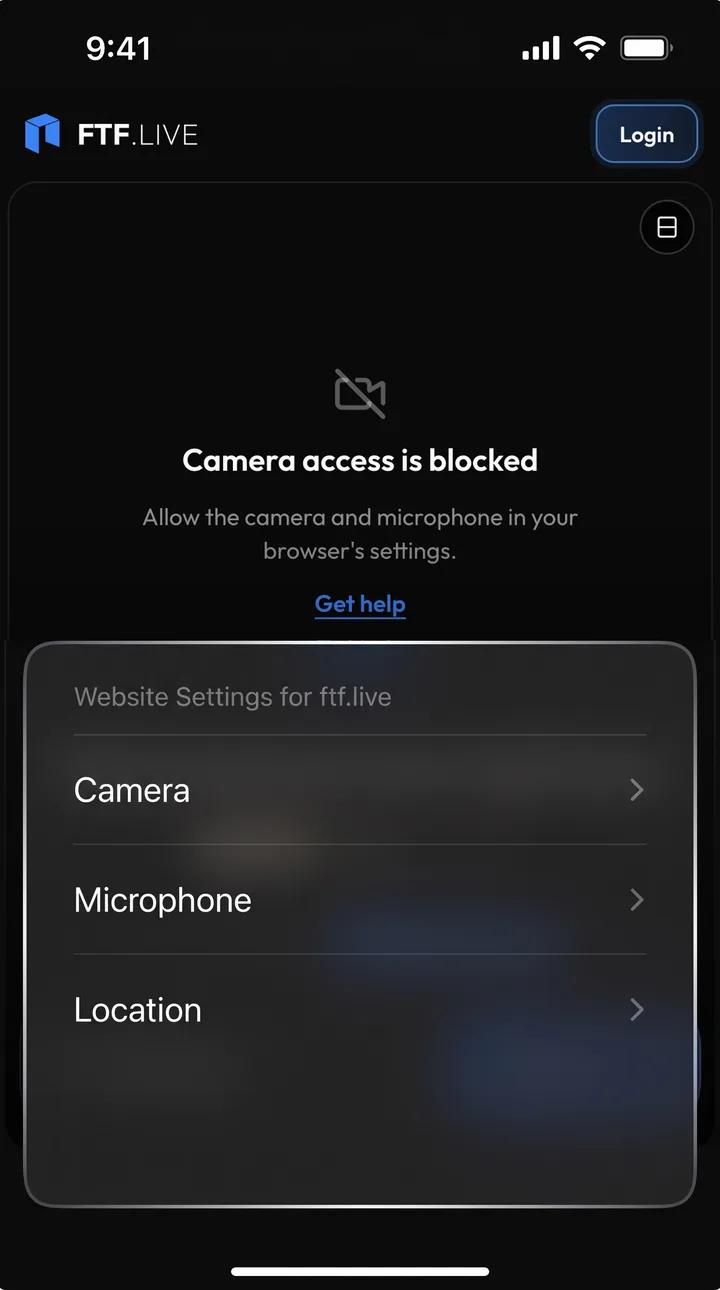
3. Allow Camera and Microphone
Scroll down to Website Settings for ftf.live. Tap Camera and choose Allow, then tap Microphone and choose Allow.
Check Safari's settings
If Safari never asks, the camera may be denied for every website.
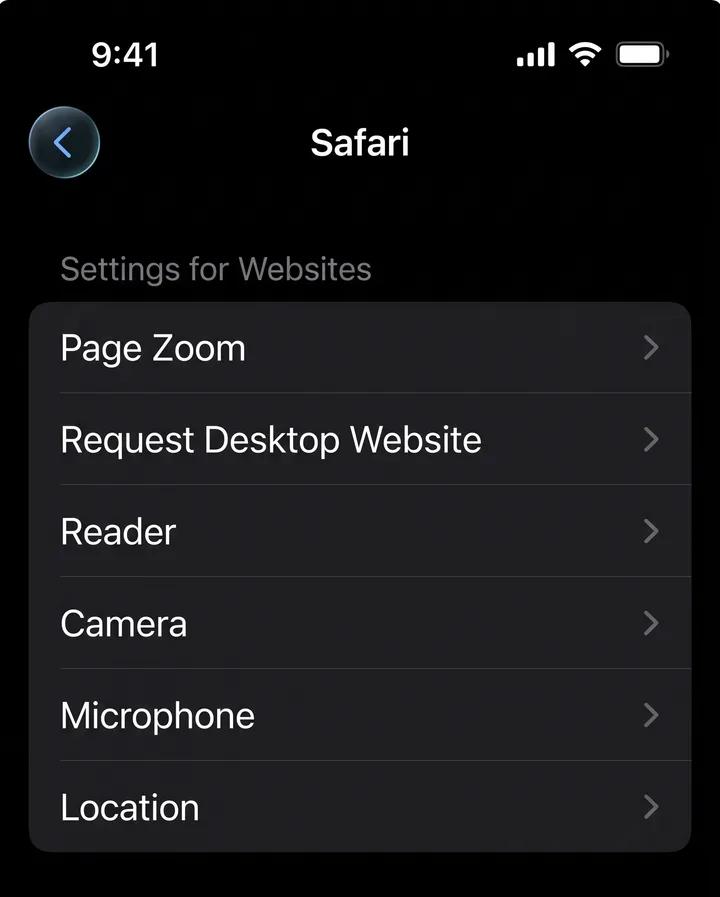
- Open Settings → Apps → Safari.
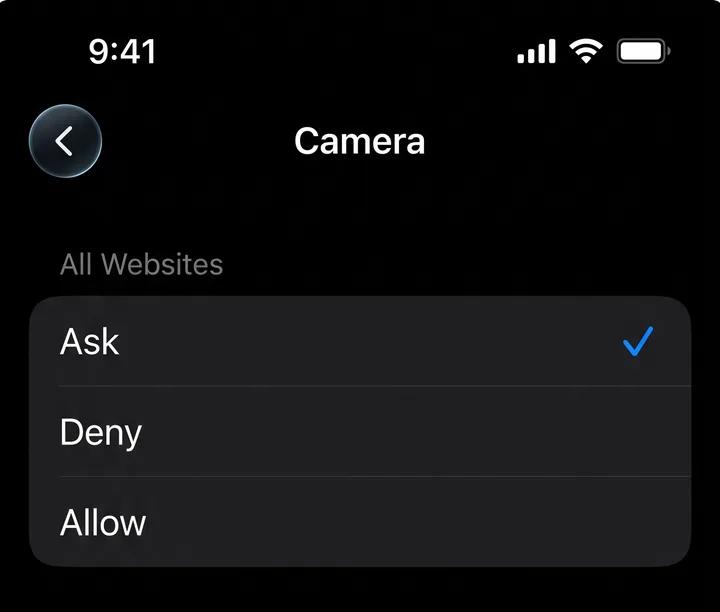
- Scroll to Settings for Websites and tap Camera.
- Under All Websites, choose Ask or Allow. With Deny, Safari doesn't ask at all.
- Go back, tap Microphone and do the same.
Reload FTF.live
Reload the FTF.live page, then tap Turn on camera or START again.
Other settings that can turn the camera off
- Screen Time. If Screen Time restrictions are set up on the iPhone (often on a child's phone), the camera can be turned off there. Ask whoever manages Screen Time on that phone.
- Chrome on iPhone. Open Settings → Apps → Chrome and make sure the camera and the microphone are turned on. Then allow them when Chrome asks.
Still no picture after allowing it? See I allowed camera access, but my camera still doesn't work.