Choose which camera and microphone FTF.live uses
On a computer, you choose the camera and microphone from the gear on your own video. Phones have no device picker: FTF.live uses the camera your browser opens.
On a computer
1. Open the gear on your own video
Turn your camera on first. Then move the mouse over your own video: a gear appears in its corner (its tooltip says Camera and microphone). Click it.
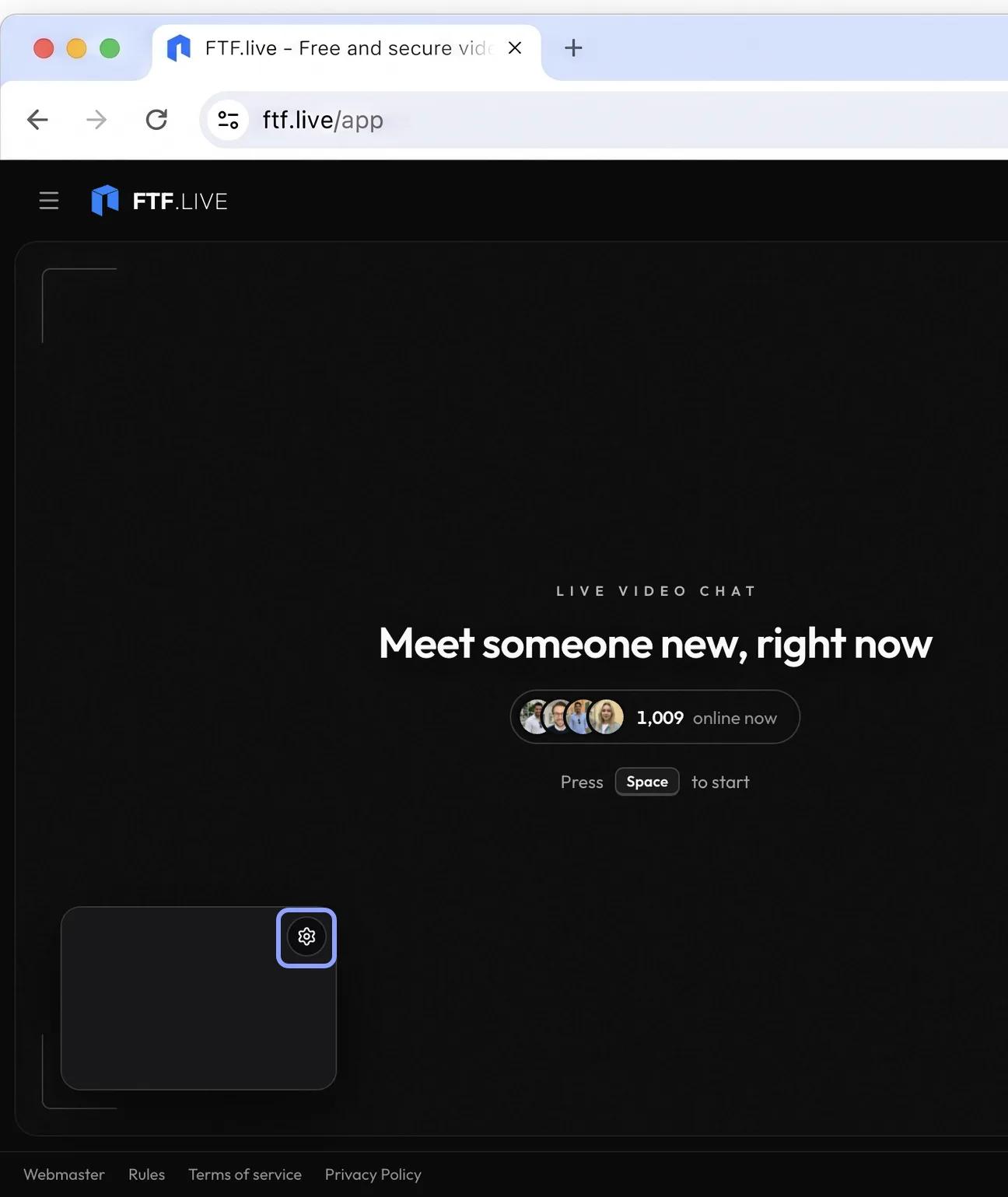
If the camera is still off, the gear opens the camera window instead. Turn the camera on there, then open the gear again.
2. Pick your devices
Media Devices opens with a preview. Under Video Input, choose the camera; under Audio Input, choose the microphone. The preview shows what the camera sees.
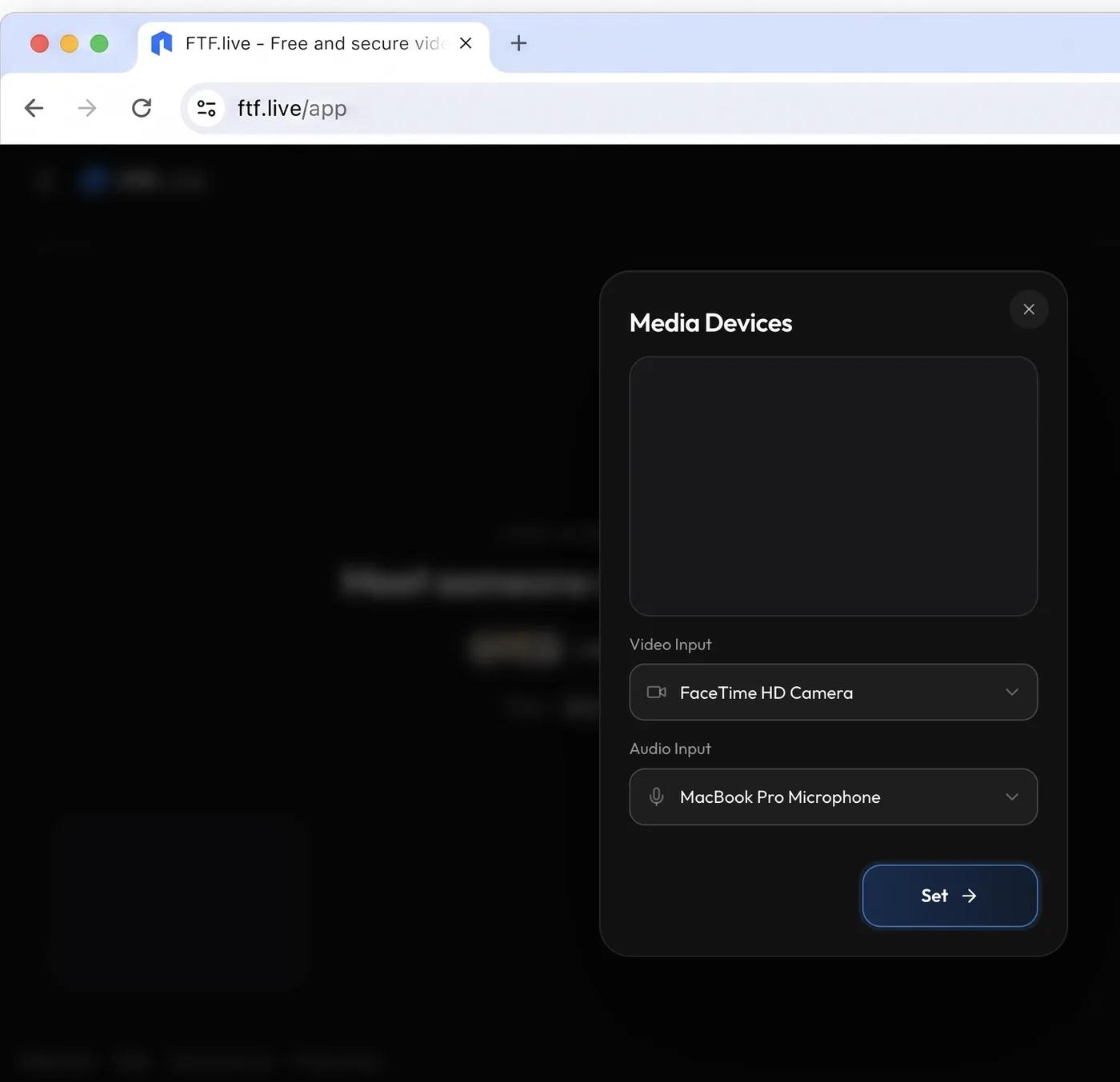
3. Press Set
Press Set. FTF.live switches to the devices you chose. Set stays greyed out until the preview has started. FTF.live remembers your choice in this browser.
Don't see your camera or microphone in the list? Plug it in, reload the page and turn your camera on again: FTF.live reads the list of devices when the camera starts. If it still doesn't work, see I allowed camera access, but my camera still doesn't work.
There's no speaker setting in FTF.live: sound plays through your computer's current output. Change it in your computer's sound settings.
On a phone
FTF.live has no device picker and no button to switch between the front and back camera on a phone. It uses the camera your browser opens.
To use a headset, connect it before you open FTF.live.