Allow camera and microphone on Android (Chrome)
When FTF.live asks for your camera, Chrome shows a prompt: tap Allow while visiting the site. If you chose Never allow before, turn the camera and microphone back on for ftf.live in Chrome, check that Android lets Chrome use them, and reload the page.
The steps and screenshots below are from Chrome 154 on Android 15. Some phone makers name or arrange Android's own settings a little differently.
When the prompt appears
Tap Turn on camera or START on FTF.live. If you're signed in, the prompt can also appear as soon as the page opens. Chrome says "ftf.live wants to use your camera and microphone" and offers Allow while visiting the site, Allow this time and Never allow. Tap Allow while visiting the site.
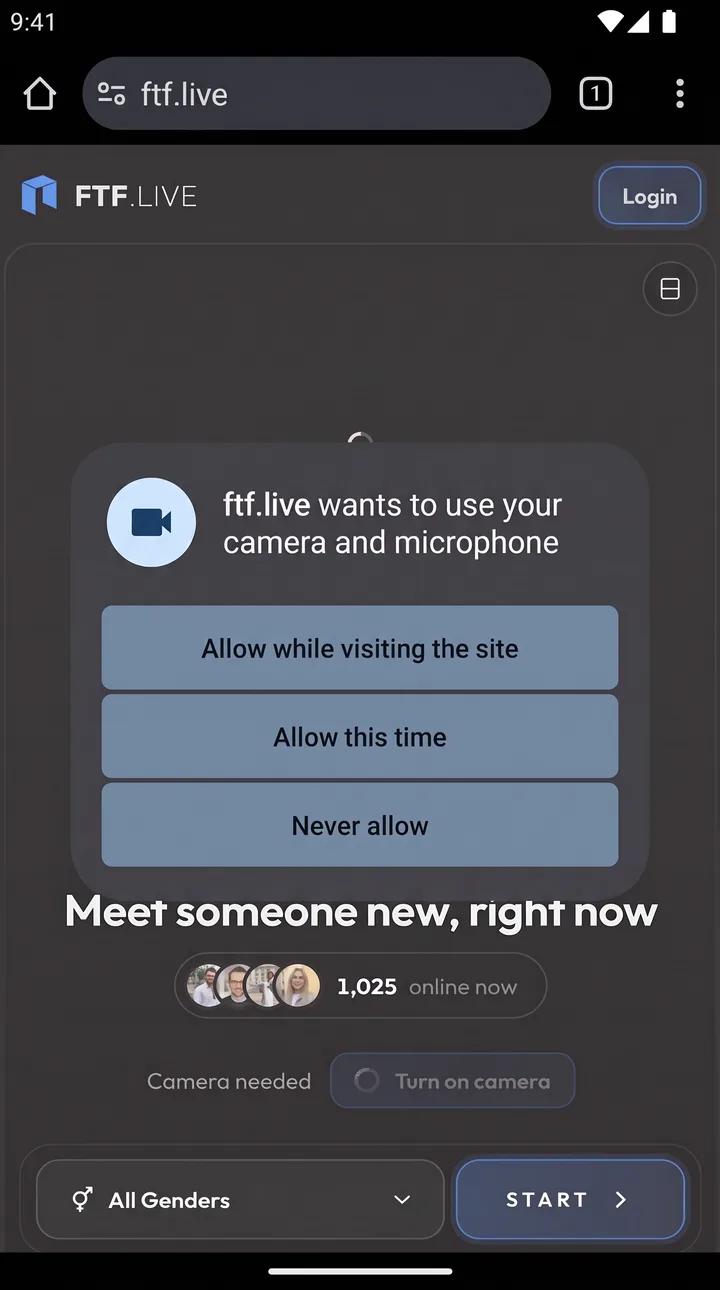
FTF.live needs both the camera and the microphone. If either one isn't allowed, FTF.live shows Camera access is blocked.
If you chose Never allow
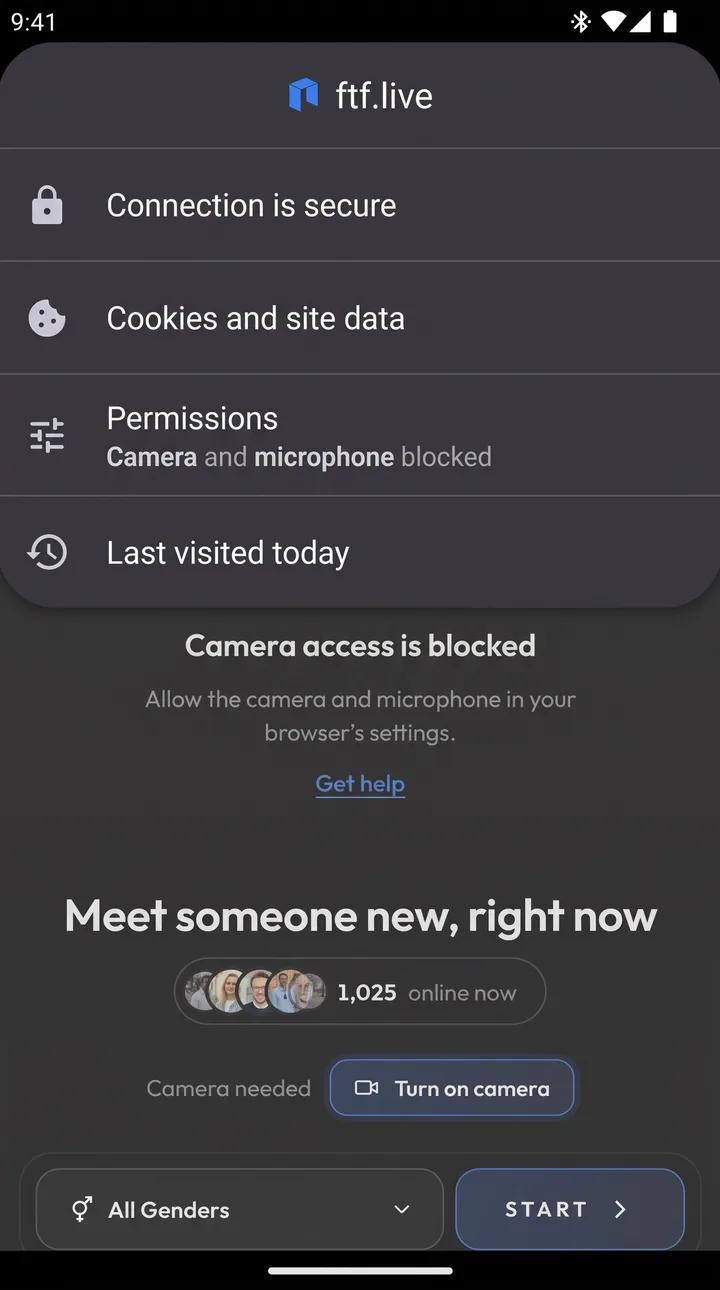
- On the FTF.live page, tap the icon at the left of the address (two small sliders). A panel opens with Permissions: "Camera and microphone blocked".
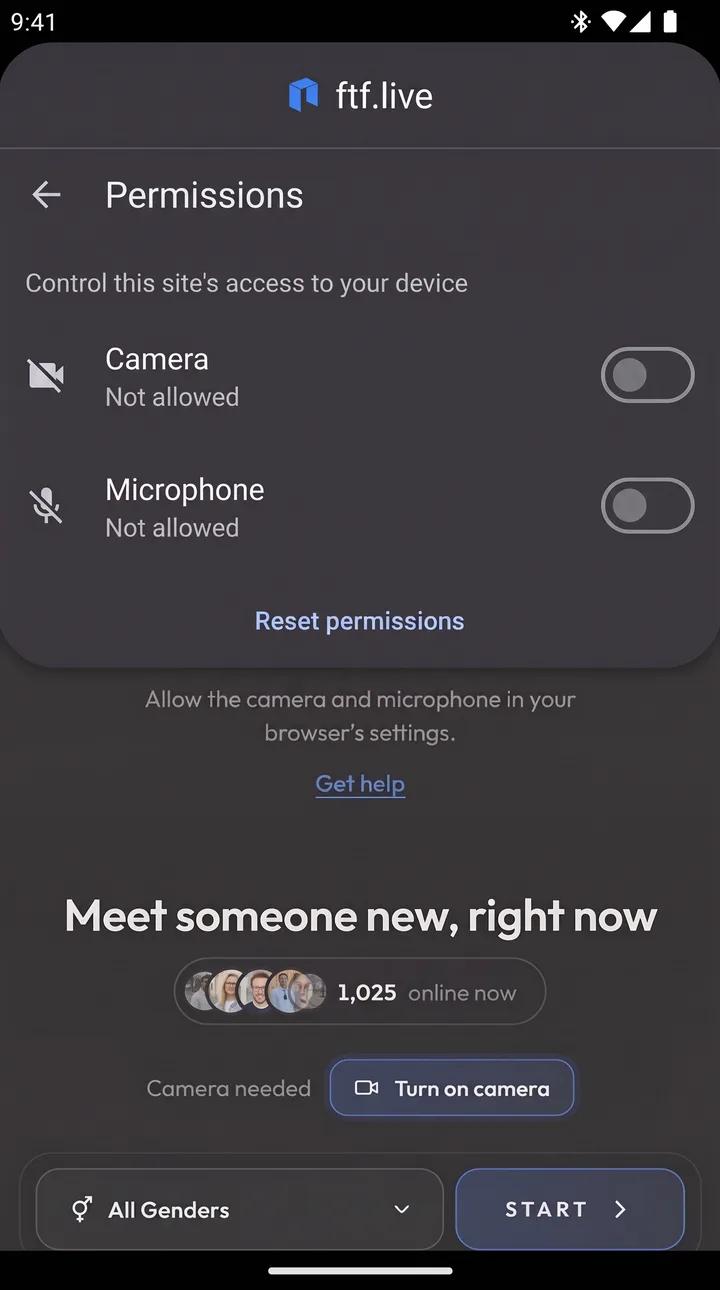
- Tap Permissions.
- Turn on Camera and Microphone, or tap Reset permissions so Chrome asks you again.
Check Chrome's site settings
If Chrome doesn't ask at all, the camera may be blocked for every site.
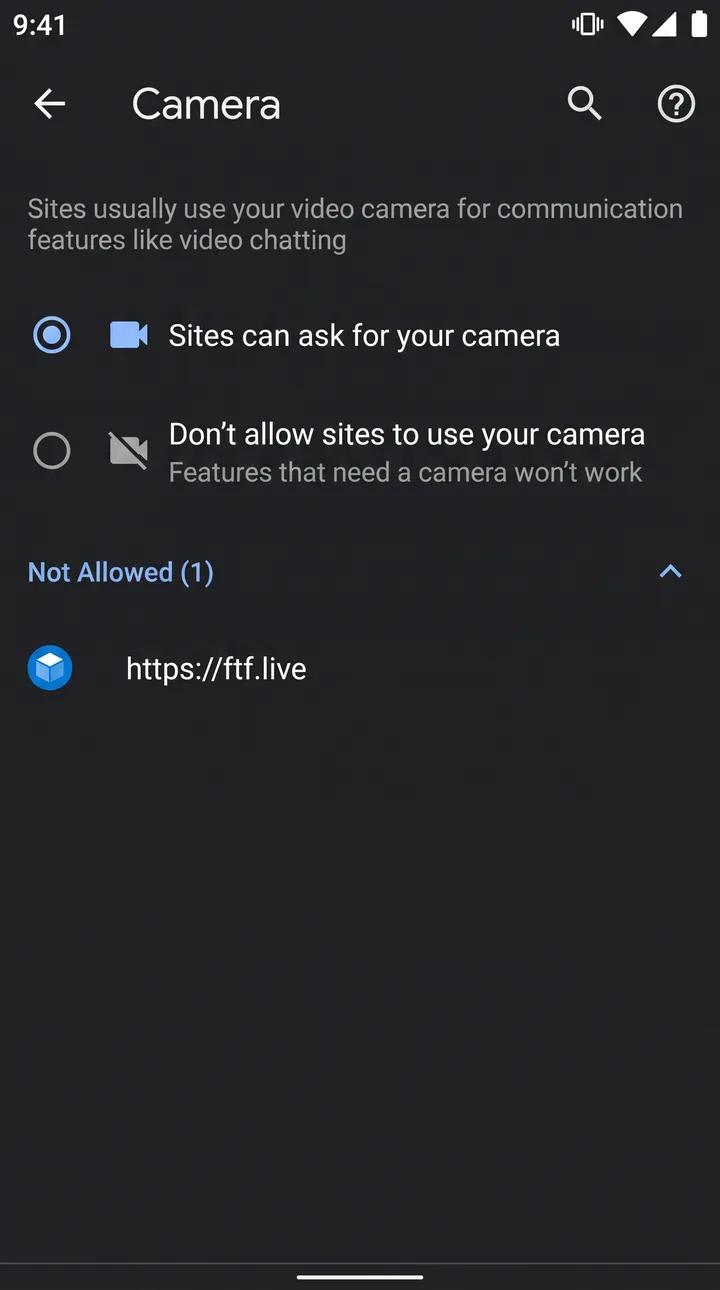
- In Chrome, tap ⋮ → Settings → Site settings → Camera.
- Choose Sites can ask for your camera.
- If ftf.live is listed under Not Allowed, tap it and allow the camera.
- Go back to Site settings, tap Microphone and choose Sites can ask for your microphone.
Check Android's app permissions
Android itself must let Chrome use the camera and microphone.
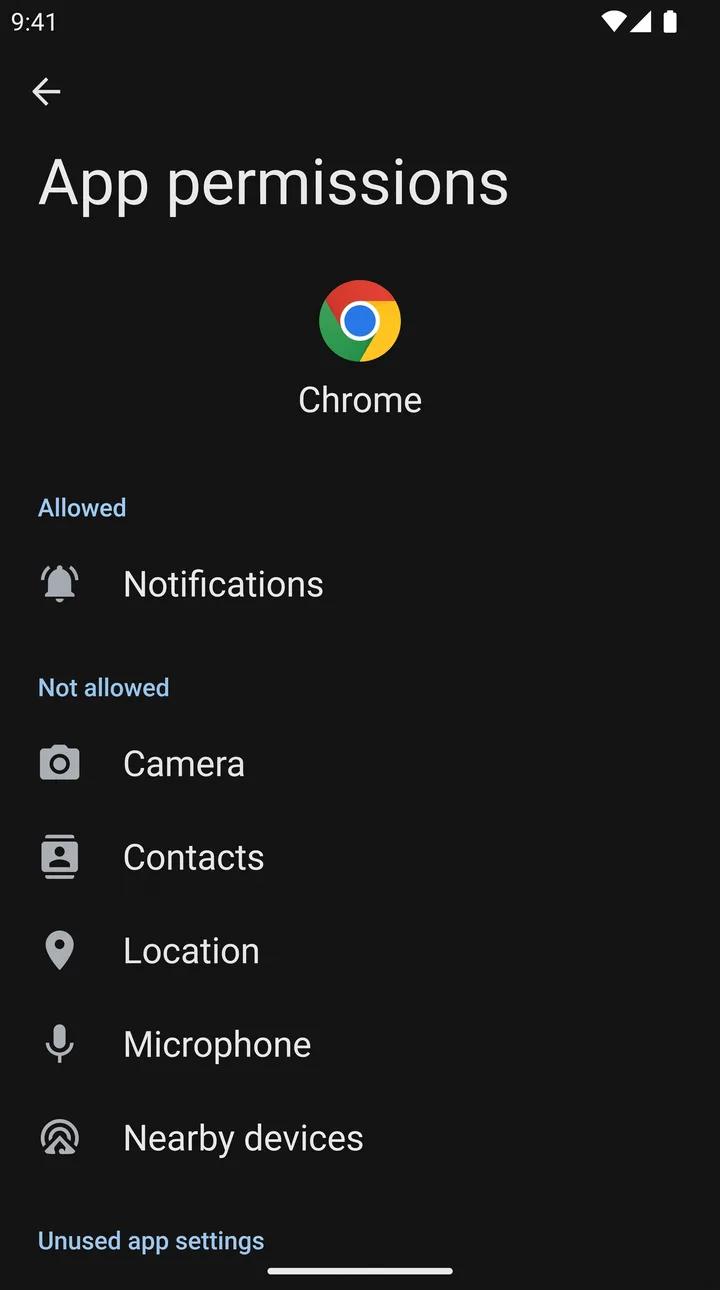
- Open Android's Settings → Apps. If Chrome isn't in the list, open the full list of apps. Then tap Chrome → Permissions.
- If Camera is under Not allowed, tap it and choose Allow only while using the app or Ask every time.
- Do the same for Microphone.
Check the Quick Settings tiles
Android has switches that turn the camera and the microphone off for every app. Swipe down twice from the top of the screen. If the Camera access or Mic access tile says Blocked, tap it so it says Available.
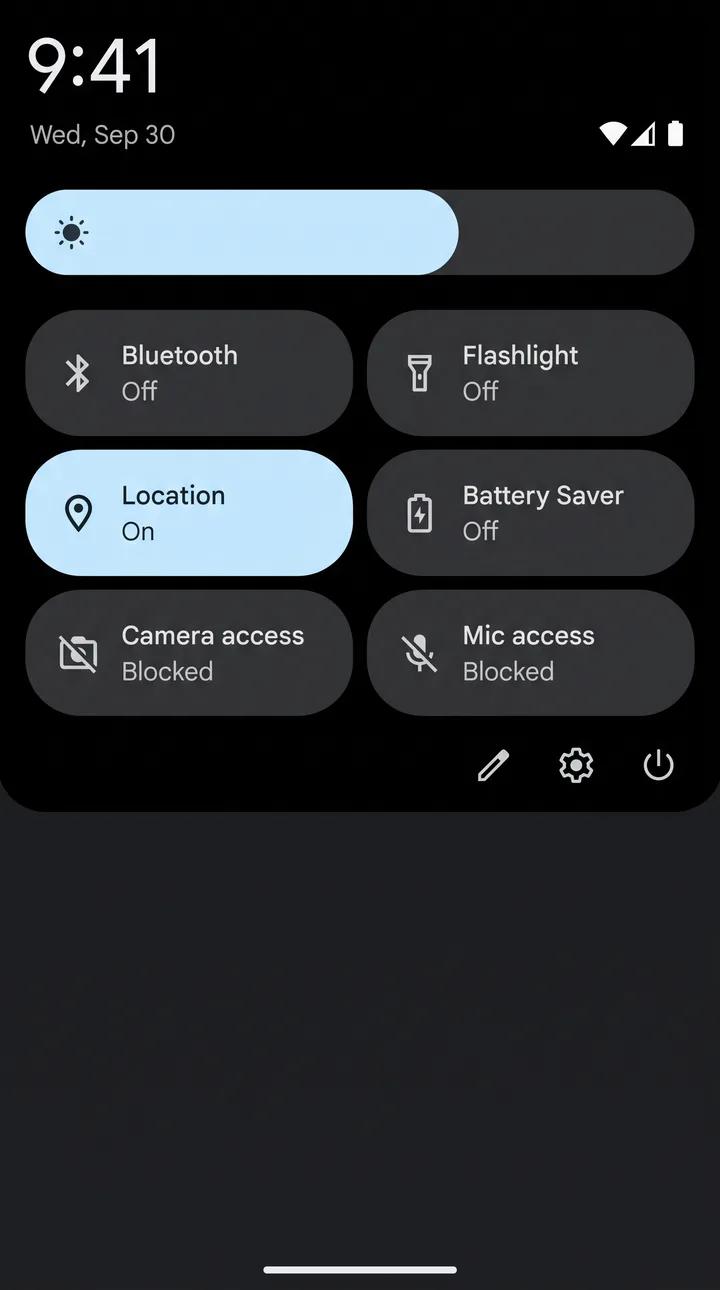
The same switches are in Settings → Security & privacy → Privacy → Privacy controls, as Camera access and Microphone access (on Pixel phones; other phones may use different menu names).
Reload FTF.live
Reload the FTF.live page, then tap Turn on camera or START again.
Still no picture after allowing it? See I allowed camera access, but my camera still doesn't work.