I allowed camera access, but my camera still doesn't work
If FTF.live shows Camera unavailable or Your camera couldn't start, your browser has permission but couldn't start the camera. Most often another app is using it, or the camera isn't connected. Fix the cause, then press Try again.
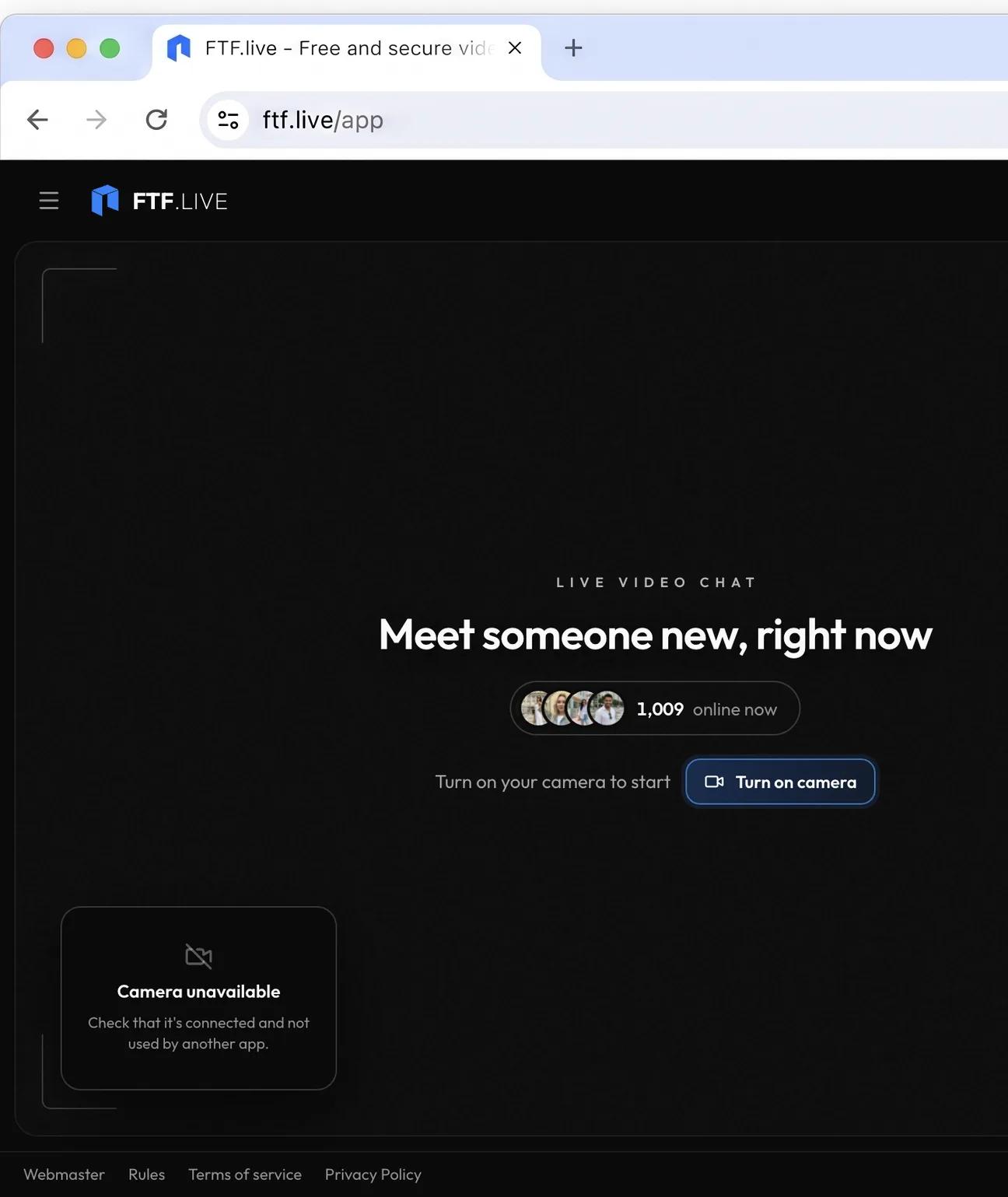
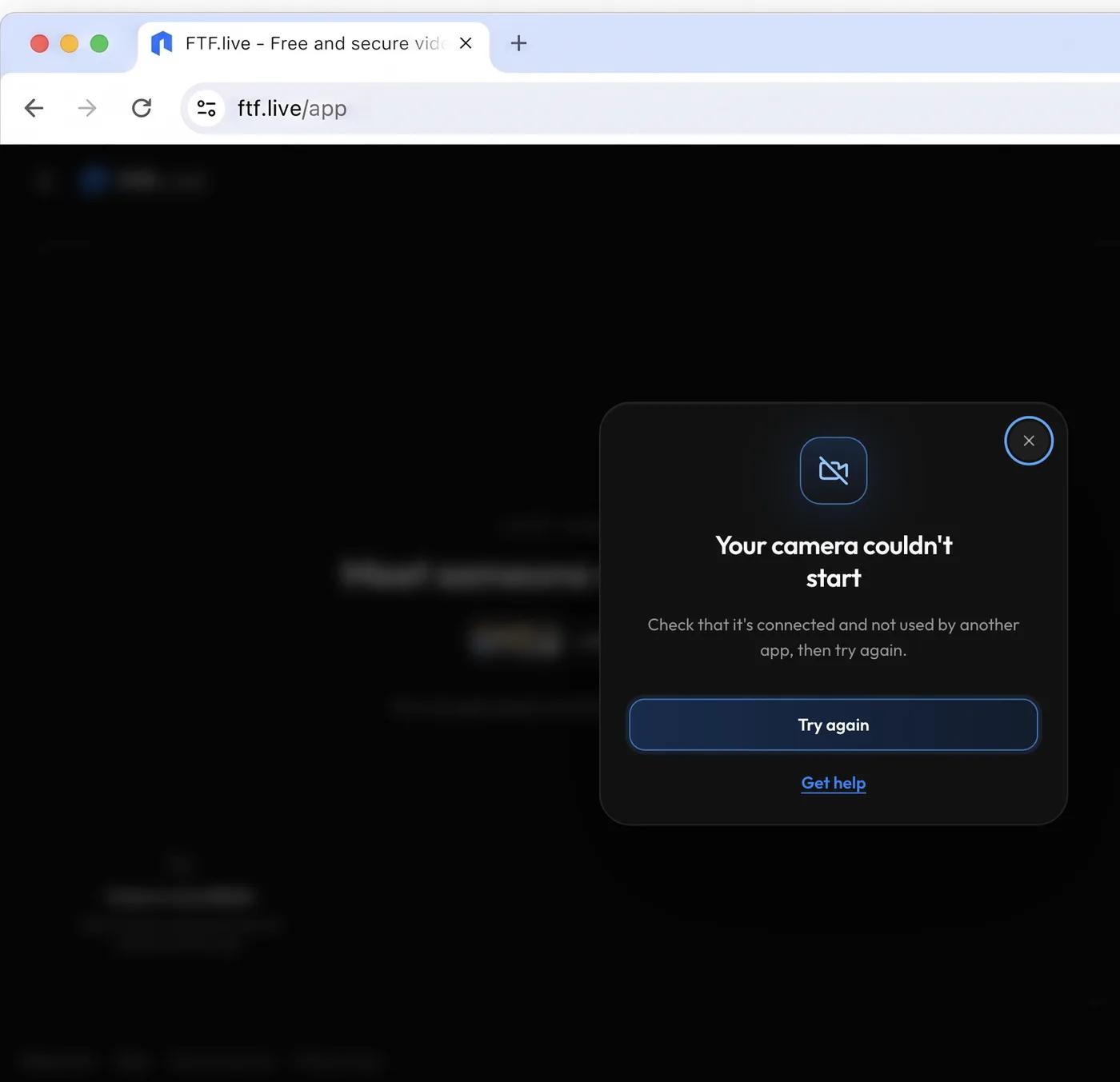
If FTF.live says Camera blocked or Camera access is blocked instead, your browser or your device isn't letting FTF.live use the camera yet. Follow the guide for your device: iPhone, Android, Windows, Mac with Chrome or Mac with Safari.
Close other apps that use the camera
Many cameras work with only one app at a time. Close FaceTime, Zoom, Teams, OBS or any other video app, and other browser tabs that might be using the camera. Then press Try again.
Check the system setting
Your computer can switch the camera off for every app, even when the browser allows it. On a Mac, Chrome must be on under Privacy & Security; on Windows, the camera must be allowed under the privacy settings. The Mac (Chrome) and Windows guides show where.
Check the camera itself
- Some laptops have a sliding privacy cover over the camera, or a key that turns the camera off. Open the cover or press the key.
- An external USB camera must be plugged in. Try another USB port, then press Try again.
- If your computer has more than one camera, make sure FTF.live uses the right one. See Choose which camera and microphone FTF.live uses.
Open FTF.live in a regular browser
Built-in browsers inside apps such as Instagram, TikTok or Facebook may not be able to use the camera. Open the page in Safari, Chrome or another full browser. See Which browsers can I use?
Still not working?
Try another browser, or restart your device and open FTF.live again. If nothing helps, contact us.