Allow camera and microphone on Mac (Safari)
When FTF.live asks for your camera, Safari shows a prompt: click Allow. If you clicked Don’t Allow before, set the camera and microphone back to Allow for ftf.live in Safari's website settings, then reload the page.
The steps and screenshots below are from Safari 27 on macOS 26.7.
When the prompt appears
Click Turn on camera or START on FTF.live. If you're signed in, the prompt can also appear as soon as the page opens. Safari asks "Allow “ftf.live” to use your camera and microphone?". Click Allow.
FTF.live needs both the camera and the microphone. If either one isn't allowed, FTF.live can't turn your camera on.
If you clicked Don’t Allow
Change it for ftf.live
- On the FTF.live page, click the Page menu button at the left end of the address field.
- Choose Website Settings.
- Set Camera: and Microphone: to Allow.

Or use Safari Settings
- In the menu bar, choose Safari → Settings…, then click Websites.
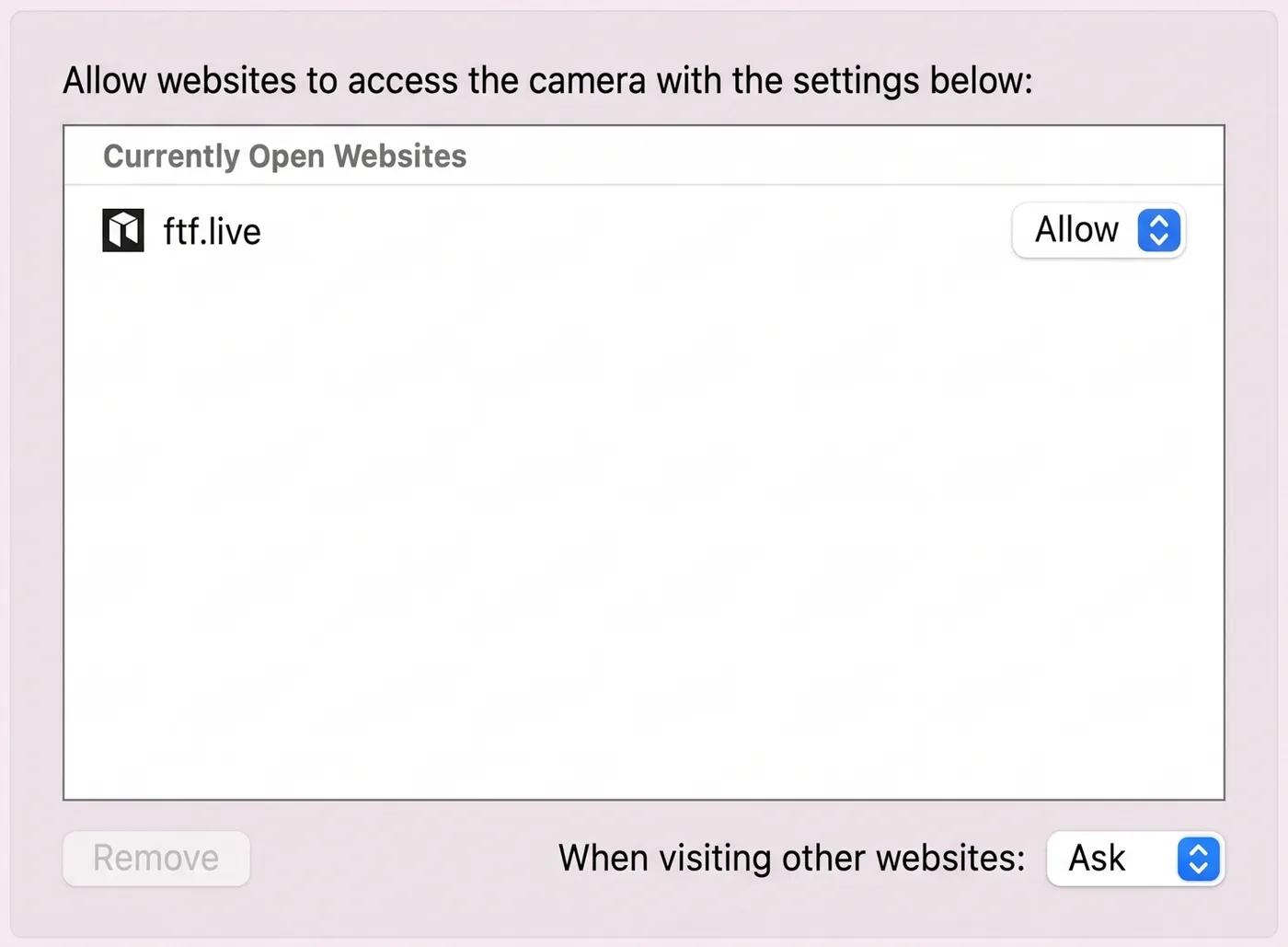
- Click Camera in the list on the left. On the right, under "Allow websites to access the camera with the settings below:", find ftf.live (under Currently Open Websites while FTF.live is open, or Configured Websites) and choose Allow.
- Check When visiting other websites: too. With Deny, Safari doesn't ask at all; Ask is the usual choice.
- Click Microphone and do the same.
What about System Settings?
Safari itself has no switch under System Settings → Privacy & Security → Camera or Microphone, so there's nothing to turn on there for Safari. If you use Chrome on the same Mac, see Allow camera and microphone on Mac (Chrome).
Reload FTF.live
Reload the FTF.live page, then click Turn on camera or START again.
Still not working?
Another app may be using the camera, such as FaceTime, Zoom or Teams. Close it and try again. More fixes: I allowed camera access, but my camera still doesn't work.